1. Installing Foodbakery Theme Via WordPress:
Make sure you have following server and php.ini configurations to install Theme and plugins. Server & php.ini requirements for Food bakery Theme
Follow the steps below to install the theme via WordPress:
Step 1 – Navigate to Appearance > Themes.
Step 2 – Click Install Themes and hit the upload button.
Step 3 – Find the “Food bakery.zip” file on your computer and click “Install Now”
Step 4 – Once uploaded, activate the theme. Go to Appearance > Themes and activate it.
Step 5 – Then you will see a notification message to activate the required & recommended plugins. Follow the steps to install and activate each plugin.
Attention Note! You can upload .zip files in this method of theme installation. No other format is accepted there, and, result will be error in installation.
Installation Via FTP
Follow the steps below to install theme via FTP
Step 1 – Connect/Login to your hosting via FTP software (FileZilla, CuteFTP etc). Once you have downloaded and installed the program you’ll be able to launch the program and proceed with configuring the settings to allow your computer to communicate with your web host account.
Step 2 To configure FileZilla to connect to your website please select “File” then“Site Manager”.
Step 3. A “Site Manager” window will show up. Click on the “New Site” button and enter a name for the new connection settings. (You can name it anything, but best to name with your domain name to keep it straight so that you know where it takes you to).
Step 4. Now you need to fill in your FTP account information in the box on the right side of the screen. Please enter “Host name” ( ftp address), “Server Type” ( FTP), “User Name and Password” ( your web host account password) which are all available from your webhost.
Step 5. Then click on “Connect” and cross your fingers that you have entered the correct information in the right boxes. If you entered the information correctly it will connect with your server and populate the area on the right side of the program with folders that shows your website files on the server, ( the left side of the screen displays and gives you access to your local folders on your computer.
Step 6. One of the folders you see is your website main directory. Typically if your webhost uses a cPanel server, your main root directory is called “public_html”.Your WordPress files should be in that file. The main WordPress files that a beginner needs to work with is in a folder called “wp-content”. This is the file where you will find you “Plugins” folder as well as your “Themes” folders.
Step 7. To get new plugins or themes added to your WordPress Install through FTP, download zipped files of plugins and or themes to your computer. When downloaded, extract them to a file on your computer. Drag the unzipped plugin or theme files, individually into either the plugin or the theme file as the case may be.
Step 8. Go to the WordPress dashboard and go to “Appearance”, “Themes” and see that your new theme now shows up in the list of themes. The downloaded theme should be there. If not refresh, and it should appear ready to be activated. The same with Plugins. The downloaded Plugin should be in the list of “Plugins”and then you must activate it and configure each one as necessary.
Attention! If you face any problem in uploading purchased theme, just navigate FAQ’s section to get appropriate solution if still problem persists open a ticket and Chimp Studio team is there to help at Chimp Support.
2. Recommended Plugin Installation
To begin with, first you need to have theme and recommended plugins installed and activated on your site.
WP-foodbakery (our custom post type management plugin)
Foodbakery Framework (necessary includes and functionality supports are included with this plugin)
Foodbakery Shortlists (To shortlist restaurants)
Foodbakery Email Templates (Email templates)
Slider Revolution (for slider management)
3. Installing Demo
If these settings match your configurations in PHP.ini file, then you will see green tick marks which means all requirements are okay. As these settings are already met, click on next step and you will see a screen asking you to put purchase code*

*You can find you purchase code from your theme forest dashboard > Downloads >Foodbakery> purchase code. If you already used your purchase code and giving error: “THE PURCHASE CODE IS BEING USED ON ANOTHER SITE. PLEASE DEREGISTER IT FROM THERE AND THEN TRY AGAIN”. Than follow article to deregister and release your purchase code here: http://chimpgroup.com/knowledgebase/how-to-de-register-purchase-code/
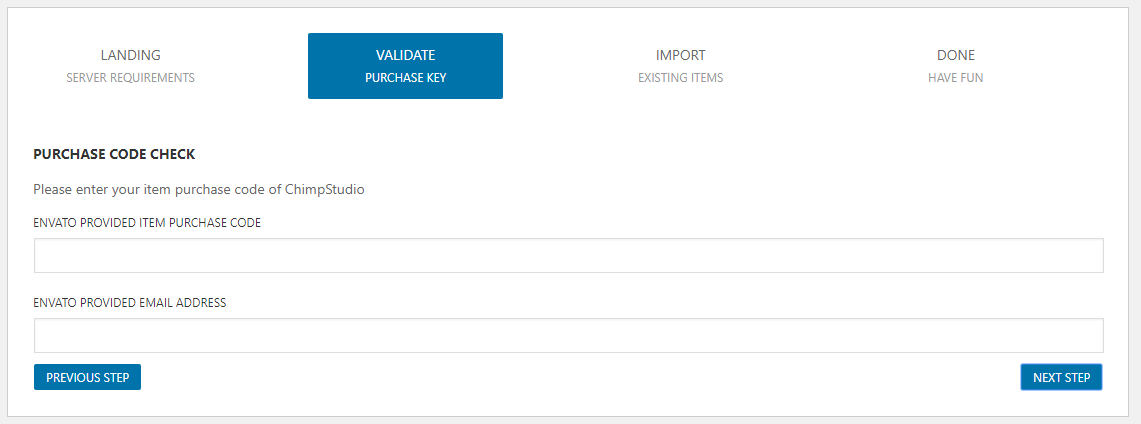
* Input your valid purchase code, after validation, you will see list of demos available to import. Select demo of your choice, lets select default Foodbakery demo and click on next.

You will see link of items to import. Let all of them checked and click on next.

A screen will appear showing demo data is being imported, it usually takes 1 minute to 5 minutes depending upon your server settings and internet speed. For me, it gets imported in less then a minutes. Upon completion, you will see a success message saying all demo has been imported.

Open a new tab and enter your website URL to see if the demo has been imported. Hit Yes, if article is helpful.!